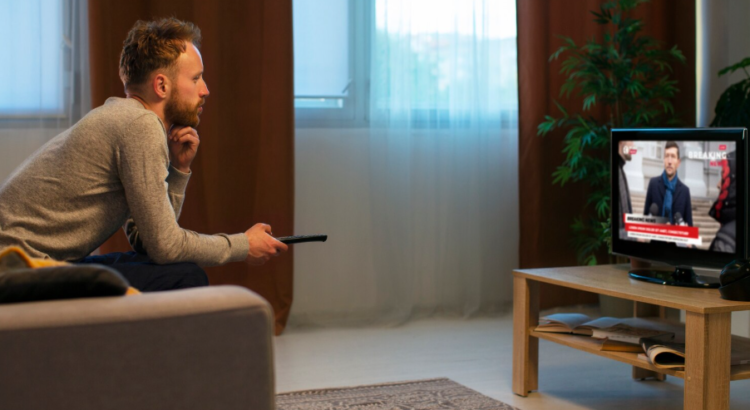
YouTube has long evolved past its origins as a website for watching low-resolution, viral clips on a desktop computer. Today, it is a premier entertainment destination featuring full-length documentaries, 4K travel vlogs, live concerts, and daily independent news broadcasts. Naturally, content of this caliber is best experienced on the biggest screen in your house, complete with a proper sound system.
Bringing the YouTube experience to your living room television is a game-changer for your daily entertainment. However, typing out a complex Google account password using a clunky television remote is an incredibly frustrating hurdle. To solve this, Google has implemented several streamlined activation methods that allow you to link your account using your smartphone or computer Visit Youtube.com/activate.
This comprehensive guide will walk you through the various ways to activate YouTube on your smart TV, streaming stick, or gaming console, ensuring you can transition from the small screen to the big screen without a headache.
The Pre-Setup Checklist
Before you attempt to link your accounts, ensure you have the following ready to guarantee a seamless activation process:
- A Compatible TV Device:You need a modern Smart TV (Samsung, LG, Vizio, Sony, etc.), a streaming media player (Roku, Apple TV, Amazon Fire Stick, Chromecast), or a gaming console (PlayStation, Xbox).
- The YouTube App:Ensure the official YouTube application is downloaded and installed from your device’s app store.
- A Secondary Device:Keep a smartphone, tablet, or laptop near. You will use this device to pass the TV’s onscreen keyboard.
- Your Google Credentials:Have the email address and password for the Google/YouTube account you wish to use.
- A Shared Network:For the fastest setup methods, ensure both your TV and your smartphone are connected to the exact same Wi-Fi network.
Method 1: The Web Activation Protocol (youtube.com/activate)
This is the most common and universally reliable method for logging into YouTube on a television. It works across almost all brands and devices, utilizing a simple web portal to link your hardware.
Read More – How to Pair Rumble on Your TV Via rumble.com/pair.
Step 1: Generate the TV Code
- Launch the YouTube app on your television.
- Navigate to the left-hand menu and scroll down to the Settingsgear icon, or simply look for the Sign In button prominently displayed on the home screen.
- Select Sign In. The app will present you with a few options. Choose the one that says “Try another way”or “Link with TV code.”
- Your television will display a screen featuring a unique, 8-digit numeric code (e.g., 456 789 12). Leave your TV on this screen.
Step 2: Use Your Secondary Device
- Pick up your smartphone, tablet, or computer.
- Open a web browser (Chrome, Safari, Firefox, etc.) and type the following URL directly into the address bar: com/activate.
- You will be prompted to log in to your Google account if you aren’t already signed in on that browser.
Step 3: Enter the Code
- Once logged in, the webpage will ask you to enter the code displayed on your TV.
- Type the 8-digit code exactly as it appears.
- Click Next, and then click Allowto grant the TV access to your YouTube account.
- Within moments, your television screen will refresh, successfully logging you into your personalized YouTube dashboard.
Method 2: The Seamless Smartphone Sync
If you have the YouTube app installed on your smartphone and both devices are connected to the same Wi-Fi network, this is the absolute fastest way to activate your TV.
- Open the YouTube app on your television and select Sign In.
- The TV will display a prompt asking if you want to sign in with your mobile device.
- Simultaneously, unlock your smartphone and open the YouTube mobile app.
- Because both devices are on the same Wi-Fi network, a pop-up notification should automatically appear at the bottom of your phone screen asking, “Tap to sign in to TV.”
- Tap the prompt. Your phone will verify the account, and your TV will instantly log in without requiring you to type any codes or passwords.
You May Also Like – How to Activate Hulu on TV?
Method 3: The Manual Remote Login
If you do not have a smartphone or computer handy, or if the web activation portal is experiencing an outage, you can always rely on the old-fashioned manual entry method.
- Open the YouTube app on your TV and select Sign In.
- Choose the option that allows you to sign in on the TV itself.
- An onscreen keyboard will appear. Using your directional pad on the remote, carefully type out your full Google email address and select Next.
- Type out your password. (Take your time here, as remote-control typing is prone to errors, and passwords are case-sensitive).
- If you have Two-Factor Authentication (2FA) enabled on your Google account, you will still need your phone to tap “Yes, it’s me” or to enter a texted security code to finalize the login.
YouTube vs. YouTube TV: Clearing the Confusion
A common point of friction during activation is confusing the standard YouTube app with YouTube TV.
- YouTube:This is the free, user-generated video platform we have all known for decades. The app icon is the classic red play button with a white background. Activation uses the youtube.com/activate link.
- YouTube TV:This is a premium, paid subscription service designed to replace your cable provider. It streams live broadcast networks (ABC, NBC, ESPN, AMC, etc.). The app icon features a red play button, but it is shaped like a television set. Activation for this specific service requires you to visit tv.youtube.com/start.
Ensure you are opening and activating the correct application based on what you actually want to watch.
Read More – How to Activate ESPN on Your TV Via espn.com/activate.
Troubleshooting Common Activation Issues
Technology is rarely perfect. If you hit a roadblock during your setup, here are the most common culprits and how to fix them:
“The Code is Invalid or Expired”
Activation codes are temporary for security reasons. If you take longer than 10 to 15 minutes to enter the code on the website, it will expire. Simply back out of the sign-in screen on your TV, click Sign In again to generate a fresh code, and immediately enter it on your phone.
Wrong Account Logged In
If your TV suddenly loads a YouTube profile filled with videos you don’t recognize, you likely activated the wrong account. This happens frequently on shared family computers. When you go to youtube.com/activate, the browser automatically uses whichever Google account is currently logged in. To fix this, log out on your TV, go back to the activation website on your computer, ensure you are logged into your personal Google account, and enter a new code.
The Mobile Prompt Won’t Appear
If you are trying the seamless smartphone sync (Method 2) and your phone refuses to show the pop-up, you likely have a network mismatch. Your TV might be connected to your router’s 2.4GHz band, while your phone is on the 5GHz band. Ensure both devices are on the exact same Wi-Fi SSID, or simply revert to Method 1 to pass the network requirement entirely.
You May Also Like – How to Activate STARZ on Your TV?
Enjoy the Big Screen
Taking the time to properly activate YouTube on your television unlocks a massive, personalized library of content that looks vastly superior on a 4K display. utilizing the web portal or the seamless mobile sync, you pass the frustration of remote-control typing and gain immediate access to your subscriptions, custom playlists, and watch history. Grab the remote, settle into the couch, and enjoy the show!